
















Chào bạn, đây là phiên bản bài viết đã được biên tập lại để chuyên nghiệp hơn, hấp dẫn hơn và tuân thủ đúng yêu cầu của bạn (đổi tên thương hiệu thành VPSRE, tô đỏ các lưu ý quan trọng và tô xanh các đường dẫn).Tôi đã sử dụng định dạng HTML kết hợp để bạn có thể copy trực tiếp vào trình soạn thảo website (WordPress/CMS).
Hướng dẫn Giám sát IP truy cập VPS/Cloud Server và Cảnh báo qua Telegram (Real-time)
Trong bài viết này, VPSRE sẽ hướng dẫn các bạn giải pháp bảo mật thiết thực nhất: Giám sát toàn bộ IP truy cập vào VPS, Cloud Server và phát hiện các IP đang thực hiện hành vi quét (Scan) VPS.
🎯 Tóm tắt công dụng:
Đoạn mã (Script) dưới đây được thiết kế dành riêng cho VPS Windows. Hệ thống sẽ hoạt động ngầm để kiểm tra theo thời gian thực (Real-time) xem có bất kỳ ai đang cố gắng đăng nhập vào VPS của bạn hay không (bao gồm cả Login qua RDP và các tool dò quét mật khẩu).
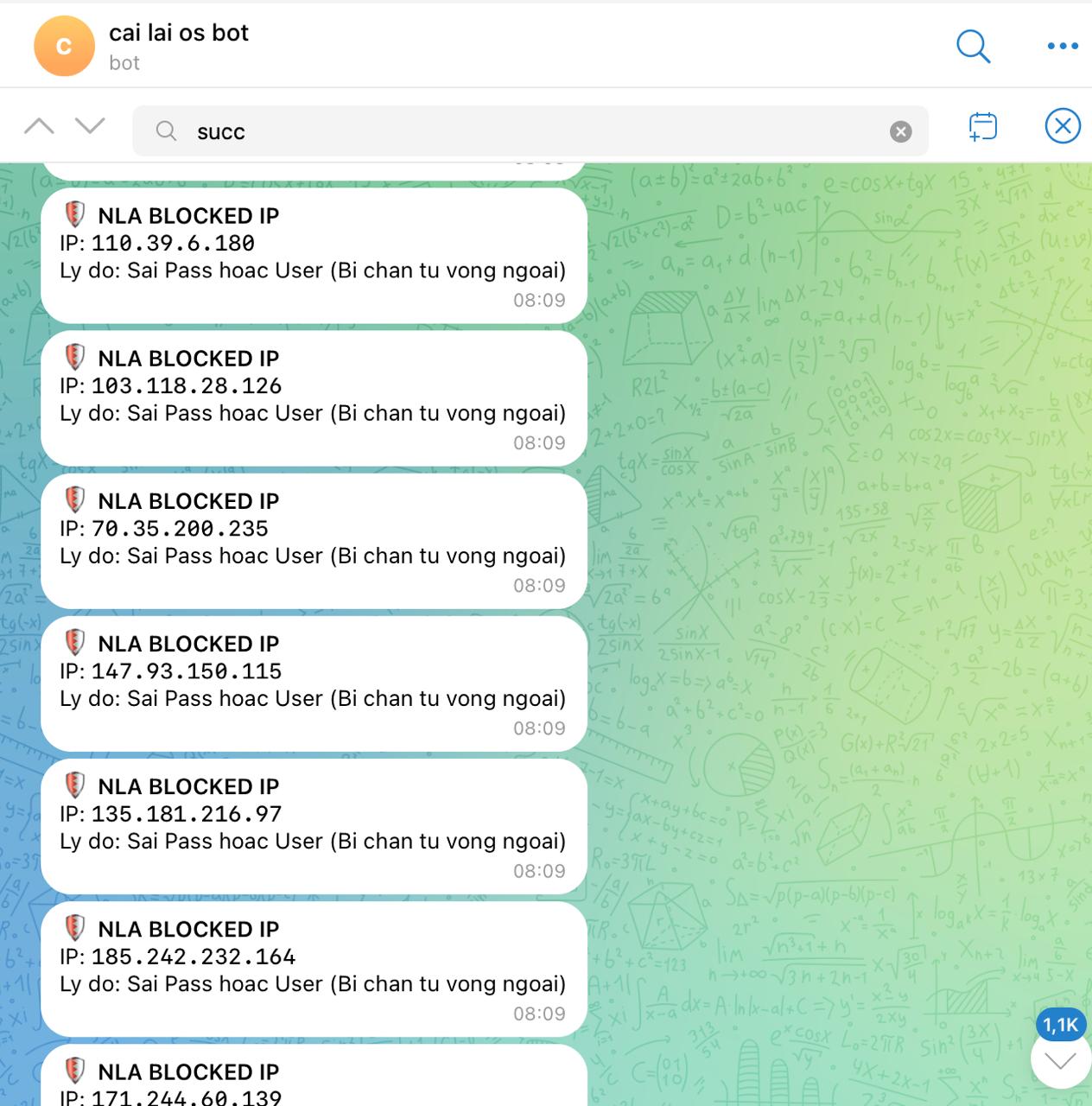
- Nếu có kẻ gian đang Scan/Brute Force: Hệ thống sẽ gửi cảnh báo ngay lập tức về Telegram kèm theo địa chỉ IP của họ.
Ví dụ tin nhắn cảnh báo:
- Nếu có ai đó Login thành công (Success): Hệ thống mặc định sẽ lưu lại Log vào ổ C của VPS để bạn tra cứu, đồng thời cũng báo về Telegram.
File log ghi lại lịch sử truy cập:
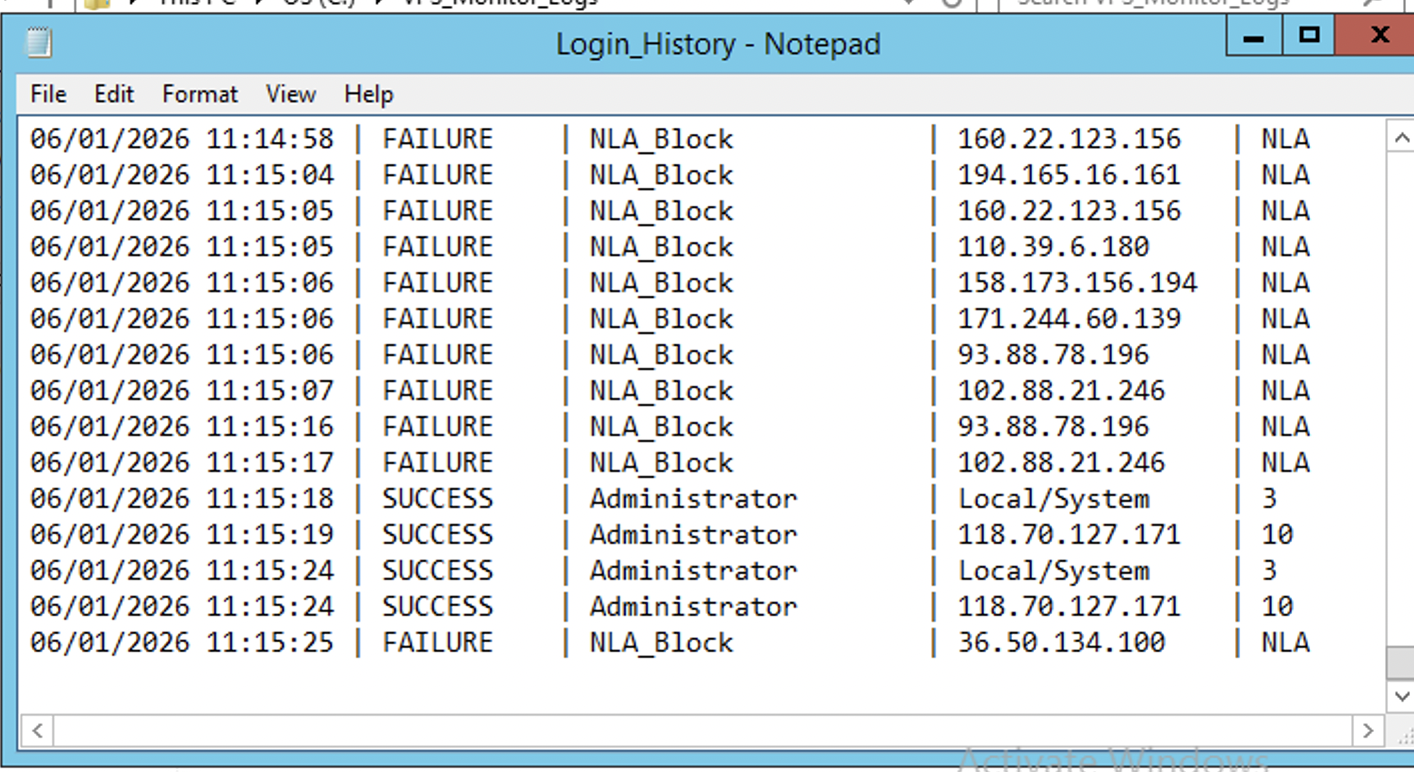
Bạn cũng có thể tìm kiếm từ khóa “Success” ngay trên khung chat của Bot Telegram để kiểm tra nhanh. Giờ thì chúng ta cùng bắt đầu nhé!
1. Quy trình cài đặt giám sát IP và kết nối Telegram
📌 Bước 1: Tạo Bot Telegram
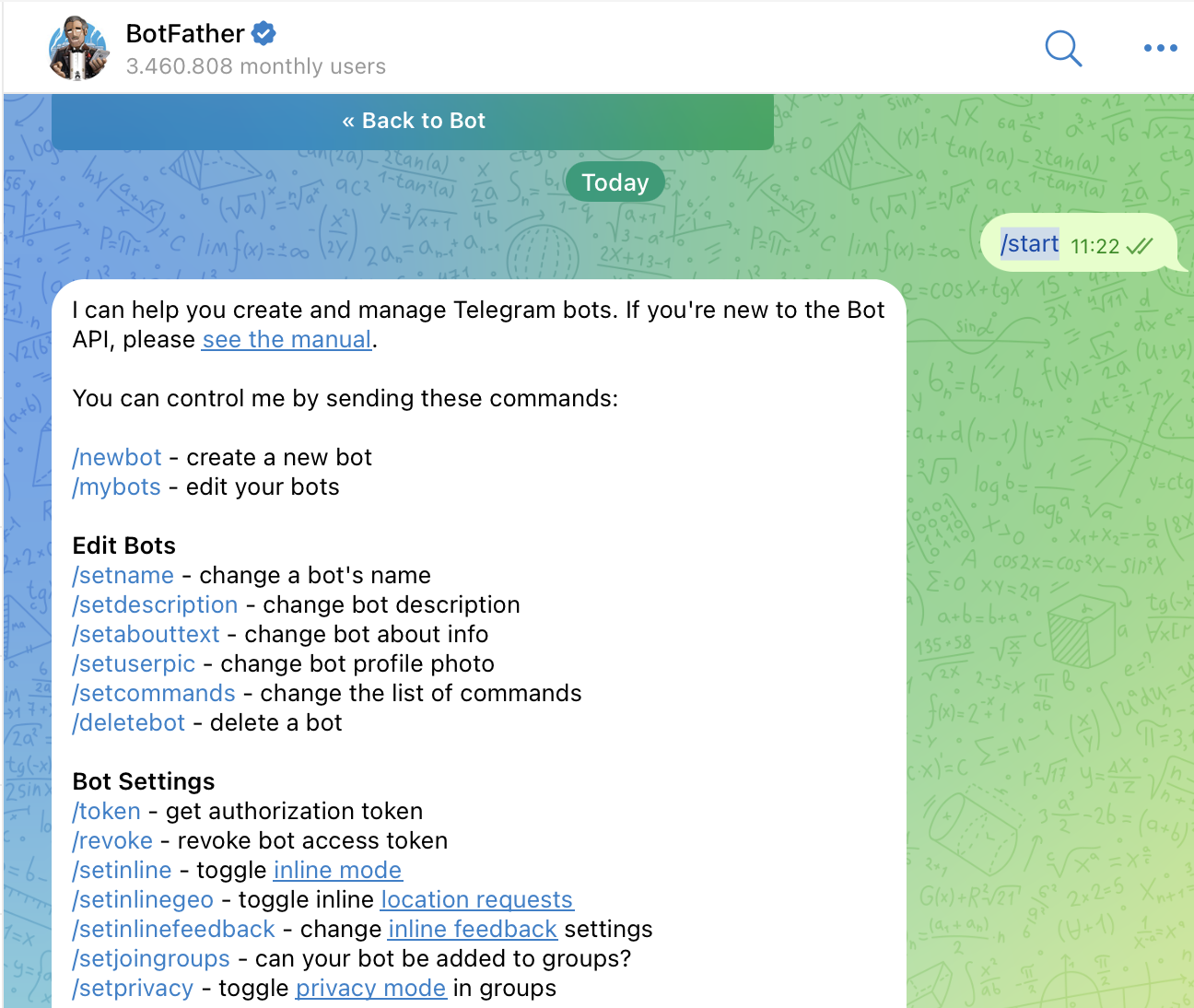
Truy cập Telegram >> Tìm kiếm @BotFather >> gõ /start >> chọn /newbot
📌 Bước 2: Đặt tên cho Bot
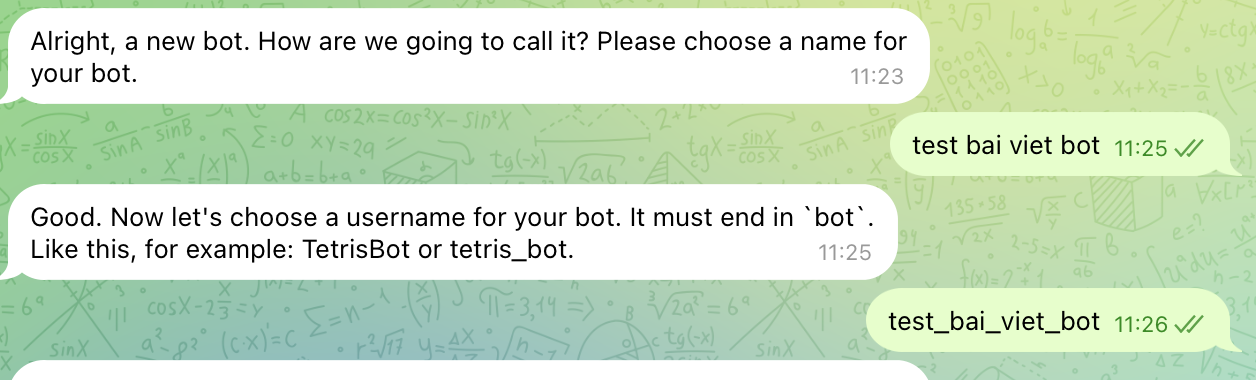
Hãy đặt tên Bot sao cho dễ nhớ. Ví dụ mình đặt là: VPSRE Monitor Bot và Username là: vpsre_monitor_bot.
Lưu ý: Tên Username (phần đuôi) bắt buộc phải kết thúc bằng chữ bot.
📌 Bước 3: Lấy Token và Chat ID
Sau khi tạo xong, bạn sẽ nhận được Token HTTP API. Hãy lưu lại đoạn mã này.
Tiếp theo, bạn ấn Start vào con Bot vừa tạo. Để lấy Chat ID, bạn truy cập đường dẫn sau trên trình duyệt web:
(Nhớ thay thế TOKEN_CUA_BAN bằng mã Token bạn vừa nhận được).
Sau khi Enter, trình duyệt sẽ hiện ra một đoạn mã JSON. Hãy tìm đến đoạn: "from":{"id": 123456789. Dãy số đó chính là Chat ID của bạn (Lưu ý: lấy ID ở dòng from, không lấy ở update_id).
📌 Bước 4: Tạo Script trên VPS
Truy cập vào VPS, tạo một thư mục mới ngoài Desktop (ví dụ: VPS_Monitor).
Trong thư mục đó, tạo lần lượt 3 file với tên chính xác như sau:
AutoMonitor.ps1Install.ps1Run_Monitor.bat
📌 Bước 5: Nhập Code xử lý
Copy toàn bộ nội dung code bên dưới và dán vào các file tương ứng. QUAN TRỌNG: Bạn nhớ thay thế dòng $BotToken và $ChatID bằng thông tin của bạn.
1. File AutoMonitor.ps1
# ==========================================FILE: AutoMonitor.ps1==========================================--- 1. BO QUA DOAN TU DONG LAY QUYEN ADMIN ---==========================================2. CAU HINH (VUI LONG THAY THONG TIN BEN DUOI)==========================================$BotToken = "THAY_TOKEN_CUA_BAN_VAO_DAY"$ChatID   = "THAY_CHAT_ID_CUA_BAN_VAO_DAY"$LogPath  = "C:\VPS_Monitor_Logs\Login_History.txt"Fix log RDPcmd.exe /c "wevtutil sl Microsoft-Windows-RemoteDesktopServices-RdpCoreTS/Operational /e:true /q:true" | Out-Null==========================================3. HAM GUI TIN==========================================[Net.ServicePointManager]::SecurityProtocol = [Net.SecurityProtocolType]::Tls12Bat Audit Policy& auditpol /set /category:"Logon/Logoff" /success:enable /failure:enable | Out-Null& auditpol /set /category:"Account Logon" /success:enable /failure:enable | Out-Nullfunction Send-Tele ($Msg) {try {$SafeMsg = [Uri]::EscapeDataString($Msg)$Url = "https://api.telegram.org/bot$BotToken/sendMessage?chat_id=$ChatID&text=$SafeMsg&parse_mode=HTML"Invoke-RestMethod -Uri $Url -Method Get -ErrorAction Stop | Out-NullStart-Sleep -Milliseconds 500} catch {}}function Write-TxtLog ($Status, $User, $IP, $Type) {try {$Dir = Split-Path $LogPath -Parentif (-not (Test-Path $Dir)) { New-Item -Path $Dir -ItemType Directory -Force | Out-Null }if (-not (Test-Path $LogPath)) {Set-Content -Path $LogPath -Value "TIME                | STATUS       | USER                 | IP                | TYPE" -Encoding UTF8}$Date = Get-Date -Format "dd/MM/yyyy HH:mm:ss"$Line = "{0} | {1,-10} | {2,-20} | {3,-16} | {4}" -f $Date, $Status, $User, $IP, $TypeAdd-Content -Path $LogPath -Value $Line -Encoding UTF8} catch {}}==========================================4. MONITOR LOOP==========================================try {# Gui tin nhan bao hieu Bot da batSend-Tele "🤖 BOT SYSTEM STARTED - VPSRE`nTrang thai: Dang chay ngam (Background)"$CacheIP = @{}
$LastCheck = (Get-Date).AddSeconds(-10)

while ($true) {
    $CurrentCheck = Get-Date
    $AllLogs = @()

    # 1. LAY LOG RDP CORE
    try {
        $RdpLogs = Get-WinEvent -FilterHashtable @{LogName='Microsoft-Windows-RemoteDesktopServices-RdpCoreTS/Operational'; Id=140,131; StartTime=$LastCheck} -ErrorAction SilentlyContinue
        if ($RdpLogs) { $AllLogs += $RdpLogs }
    } catch {}

    # 2. LAY LOG SECURITY
    try {
        $SecLogs = Get-WinEvent -FilterHashtable @{LogName='Security'; Id=4625,4624; StartTime=$LastCheck} -ErrorAction SilentlyContinue
        if ($SecLogs) { $AllLogs += $SecLogs }
    } catch {}

    $LastCheck = $CurrentCheck

    if ($AllLogs.Count -gt 0) {
        $AllLogs = $AllLogs | Sort-Object TimeCreated
        foreach ($Log in $AllLogs) {
            $IP = "Unknown"; $User = "Unknown"; $Status = ""; $Type = "N/A"

            # --- XU LY LOG NLA ---
            if ($Log.Id -eq 140 -or $Log.Id -eq 131) {
                if ($Log.Message -match "\b\d{1,3}\.\d{1,3}\.\d{1,3}\.\d{1,3}\b") { $IP = $matches[0] } else { continue }
                if ($CacheIP.ContainsKey($IP) -and ((Get-Date) - $CacheIP[$IP]).TotalSeconds -lt 60) { continue }
                $CacheIP[$IP] = Get-Date

                Send-Tele "🛡️ NLA BLOCKED`nIP: $IP" Write-TxtLog -Status "FAILURE" -User "NLA_Block" -IP $IP -Type "NLA" continue } # --- XU LY LOG THUONG --- if ($Log.Id -eq 4625 -and $Log.Properties.Count -ge 20) { $IP = $Log.Properties[19].Value } elseif ($Log.Id -eq 4624 -and $Log.Properties.Count -ge 19) { $IP = $Log.Properties[18].Value } if ([string]::IsNullOrWhiteSpace($IP) -or $IP -eq "-") { continue } if ($Log.Id -eq 4625) { # Fail if ($IP -eq "127.0.0.1" -or $IP -eq "::1") { continue } if ($Log.Properties.Count -ge 6) { $User = $Log.Properties[5].Value } if ($CacheIP.ContainsKey($IP) -and ((Get-Date) - $CacheIP[$IP]).TotalSeconds -lt 60) { continue } $CacheIP[$IP] = Get-Date Send-Tele "🛑 LOGIN FAILED`nUser: $User`nIP: $IP" Write-TxtLog -Status "FAILURE" -User $User -IP $IP -Type "N/A" } elseif ($Log.Id -eq 4624) { # Success $User = $Log.Properties[5].Value if ($User -match "SYSTEM" -or $User -match "SERVICE" -or $User.EndsWith("$")) { continue } Send-Tele "✅ LOGIN SUCCESS`nUser: $User`nIP: $IP" Write-TxtLog -Status "SUCCESS" -User $User -IP $IP -Type "Login" } } } Start-Sleep -Seconds 5 } }catch {$_ | Out-File "C:\VPS_Monitor_Logs\Error_Log.txt" -Append}
2. File Install.ps1
# ==========================================FILE: Install.ps1==========================================$TaskName   = "VPS_Auto_Monitor_System"$CurrentDir = $PSScriptRoot$ScriptPath = "$CurrentDir\AutoMonitor.ps1"1. KIEM TRA QUYEN ADMIN$IsAdmin = ([Security.Principal.WindowsPrincipal][Security.Principal.WindowsIdentity]::GetCurrent()).IsInRole([Security.Principal.WindowsBuiltInRole] "Administrator")if (!$IsAdmin) {Start-Process PowerShell.exe -ArgumentList "-NoProfile -ExecutionPolicy Bypass -File "$PSCommandPath"" -Verb RunAsExit}Clear-HostWrite-Host "--- CAI DAT HE THONG GIAM SAT VPSRE ---" -ForegroundColor Cyanif (-not (Test-Path $ScriptPath)) {Write-Host "❌ LOI: Khong tim thay file AutoMonitor.ps1!" -ForegroundColor RedRead-Host "An Enter de thoat..."Exit}2. XOA TASK CU & DUNG TIEN TRINH CUtry {Unregister-ScheduledTask -TaskName $TaskName -Confirm:$false -ErrorAction SilentlyContinueGet-WmiObject Win32_Process | Where-Object { $_.CommandLine -like "AutoMonitor.ps1" } | Stop-Process -Force -ErrorAction SilentlyContinueWrite-Host "✅ Da don dep cau hinh cu." -ForegroundColor Green} catch {}3. TAO TASK MOItry {$Action = New-ScheduledTaskAction -Execute "powershell.exe" -Argument "-NoProfile -WindowStyle Hidden -ExecutionPolicy Bypass -File "$ScriptPath\""$Trigger = New-ScheduledTaskTrigger -AtStartup$Principal = New-ScheduledTaskPrincipal -UserId "SYSTEM" -LogonType ServiceAccount -RunLevel Highest$Settings = New-ScheduledTaskSettingsSet -AllowStartIfOnBatteries -DontStopIfGoingOnBatteries -ExecutionTimeLimit (New-TimeSpan -Seconds 0) -RestartCount 3 -RestartInterval (New-TimeSpan -Minutes 1)

Register-ScheduledTask -TaskName $TaskName -Action $Action -Trigger $Trigger -Principal $Principal -Settings $Settings | Out-Null

# --- QUAN TRONG: CHAY NGAY LAP TUC ---
Start-ScheduledTask -TaskName $TaskName

Write-Host "`n✅ CAI DAT THANH CONG!" -ForegroundColor Green
Write-Host "👉 Bot da duoc kich hoat chay ngam NGAY BAY GIO."
Write-Host "👉 Hay kiem tra Telegram, ban se thay tin nhan 'BOT SYSTEM STARTED'."
}catch {Write-Host "❌ LOI: $($_.Exception.Message)" -ForegroundColor Red}Read-Host "An Enter de ket thuc..."
3. File Run_Monitor.bat
@echo off:: Chuyen den thu muc chua file naycd /d "%~dp0":: Hien thong baoecho Dang khoi dong AutoMonitor.ps1...echo Neu thay bang hoi Yes/No, hay chon YES de cap quyen Admin.:: Lenh kich hoat bypass bao mat cua WindowsPowerShell.exe -NoProfile -ExecutionPolicy Bypass -File "AutoMonitor.ps1":: Neu code bi crash thi dung man hinh lai de doc loiecho.echo ----------------------------------------------------echo Chuong trinh da ket thuc. Kiem tra loi o tren (neu co).pause📌 Bước 6: Kích hoạt hệ thống
Để hoàn tất, bạn chỉ cần click chuột phải vào file Install.ps1 và chọn Run with PowerShell.
Một cửa sổ màu xanh sẽ hiện lên và tự động cài đặt. Nếu thành công, điện thoại của bạn sẽ nhận được tin nhắn từ Bot ngay lập tức.
2. Quản lý và theo dõi Log thủ công
Ngoài việc nhận thông báo qua Telegram, bạn có thể kiểm tra chi tiết lịch sử đăng nhập được lưu trữ ngay trên VPS tại đường dẫn:
Bạn có thể mở file này, nhấn Ctrl + F và tìm từ khóa Success để lọc ra những lần đăng nhập thành công.
Nếu bạn muốn cài đặt cho các VPS khác, chỉ cần copy thư mục chứa 3 file trên sang VPS mới, thay đổi Token và Chat ID trong file AutoMonitor.ps1 rồi chạy file Install là xong.
Chúc các bạn thành công và an toàn cùng VPSRE!


Everything works perfectly on my mobile browser. No glitches and the account management is very simple. Big thanks to jljl3login for the quality service.
References:
Same day payout pokies payid payid pokies real money